
PixVerse V6 Transition

Give it a first and a last frame and it generates the 1–15 second move between them.

1-15sAudio1-65 creditsImage to Video

Frames

First Frame *
Last Frame *

Both frames are required. JPEG, PNG or WebP, up to 20MB each. Use the same aspect ratio for both.

Creative Vision

Describe what happens between the two frames: the change, the camera move, the pacing.

0/5000

Video Parameters

5s
1s15s

Choose 1–15 seconds. Priced by the second.

540p is a good draft size; switch to 1080p for the final render.

Adds sound effects, ambience and speech. Costs more per second.

Production Cost
7
Credits Balance
Loading...

Cinema Preview

Ready for Production
Configure your settings and begin creating your cinematic masterpiece

Generation History0 records

Latest 10 records • Available 7 days

PixVerse V6 Transition: First and Last Frame to Video

Give PixVerse V6 two pictures — where the video starts and where it ends — and it generates the 1–15 seconds in between. Use it for morphs, before-and-after reveals, outfit or season changes, and scene-to-scene cuts that you describe in the prompt.

Two frames with the same aspect ratio and a similar camera angle give the smoothest transition.

PixVerse V6

What a first-and-last-frame transition is for

You control both ends of the clip; the model invents the middle.

Control

Both ends are fixed

The first frame is what viewers see at second zero and the last frame is where the clip lands. Unlike image to video, the ending is not left to chance, which makes the result usable as a planned edit point.

Use cases

Morphs and before-and-after reveals

Pair an empty room with the furnished room, a sketch with the finished render, a product in its box with the product in use. The prompt tells V6 how to get from one to the other: a wipe of light, a spin, a slow dissolve through motion.

Storytelling

Bridging two different scenes

The two images do not have to show the same place. A street in daylight and a skyline at night can be joined by describing the camera rising and time passing. The closer the compositions, the less the model has to improvise.

Pacing

Length changes the feel

Two or three seconds gives a snappy social-style transition; eight to fifteen seconds gives a gradual transformation. Audio is optional and is generated to fit the change you describe.

Review before your next run

Change one part of the input at a time so you can judge what helped.

1–15 seconds · 360p to 1080p
PixVerse V6

How to make a PixVerse V6 transition

Two frames, one sentence about the change, generate.

1
Step 1

Add the first and the last frame

Both slots are required. Use JPEG, PNG or WebP files up to 20MB each, ideally exported at the same aspect ratio so neither frame is stretched to fit the other.

2
Step 2

Describe the journey between them

Explain how the first picture becomes the second: “Snow melts away as the camera holds still, flowers push up and the trees turn green.” Mention pacing — quick, steady, slow — if it matters.

3
Step 3

Pick duration, resolution and sound

Short durations suit hard transitions, long ones suit transformations. Check the credit cost above the button before you submit, and download the result from your history when it finishes.

Auto-playing timeline

Review before your next run

Change one part of the input at a time so you can judge what helped.

1–15 seconds · 360p to 1080p
Made with PixVerse V6

Street level to rooftops in one move

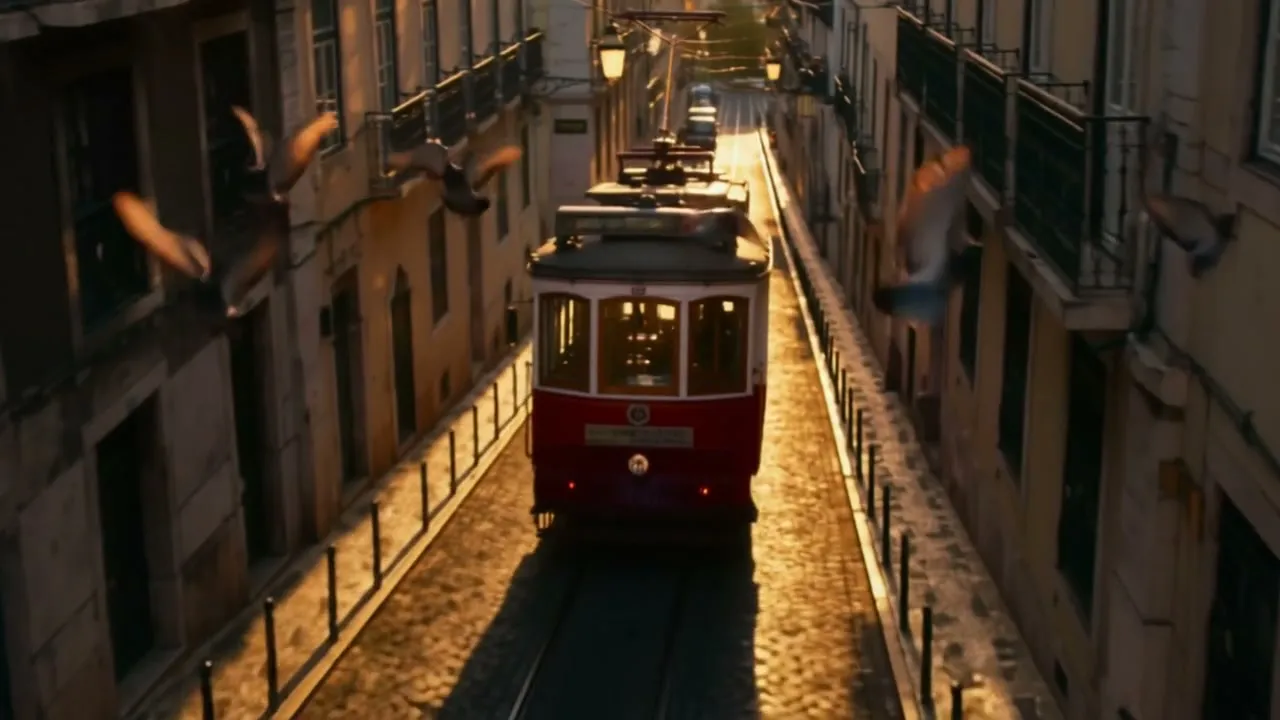
An original PixVerse V6 transition generated on Flow Veo 3 from the two frames shown below. Both frames come from our own PixVerse V6 text-to-video sample.

First + last frame · 720p · audio5-second request

Crane-up over a Lisbon street
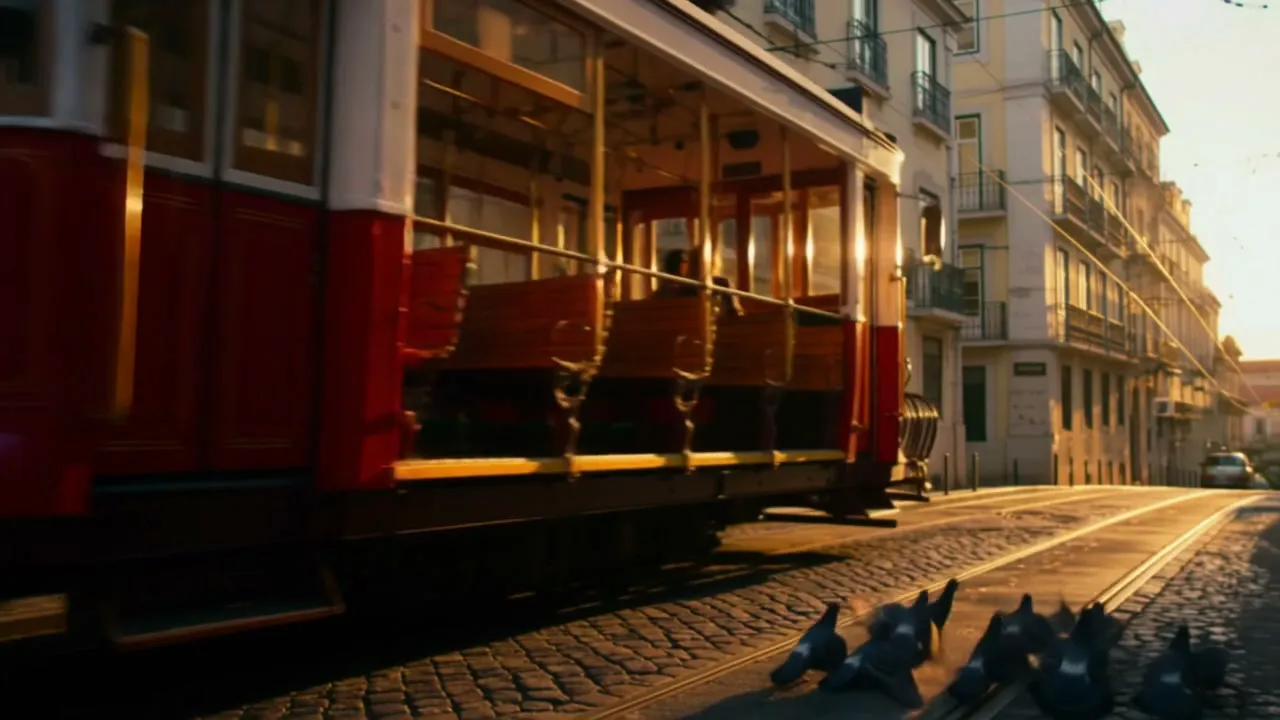
Street-level view of a red vintage tram passing on a cobbled Lisbon street at golden hour with pigeons on the ground
First frame
Aerial view of a red vintage tram on a narrow cobbled Lisbon street lined with pale buildings at golden hour, pigeons in flight
Last frame

Prompt: The camera lifts off the cobblestones beside the red tram and rises smoothly above the rooftops until the whole street is seen from above, the tram now small in the distance. Steady, continuous crane move. Tram bell and city ambience.

PixVerse V6

PixVerse V6 Transition

FAQ

Answers about this workflow, inputs and output settings.

Yes. This workflow requires both a first frame and a last frame. With a single picture, use PixVerse V6 Image to Video, which fixes only the opening frame.

They should share an aspect ratio. The output follows the first frame, so a last frame with a different shape will be fitted to it and may look cropped or stretched at the end of the clip.

They can. Describe the change in the prompt so the model knows whether to morph, cut through motion or move the camera from one place to the other. Very different compositions produce more inventive — and less predictable — middles.

No. A transition is a single continuous move from one frame to the other, so the Multi-Shot option from the other V6 pages is not offered here.

Yes. Turn on Generate Audio and describe the sound in the prompt. Silent transitions cost less per second and are easier to drop under your own music.

By the second, at the same rates as the other PixVerse V6 workflows, with resolution and audio as the two factors. The exact cost appears above the button before you submit, and failed generations are refunded automatically.

Create your next PixVerse V6 transition

Choose the workflow that matches your source material.