
MiniMax H3 Reference to Video

Use up to 9 reference images to guide subjects and scenes in a new video.

4-15sAudio8-45 creditsImage to Video

Creative Vision

Assign each image a role: “Use Image 1 for the product and Image 2 for the setting.” Describe motion and sound.

0/7000

Video Parameters

5s
4s15s

Choose 4–15 seconds. Longer clips use more credits.

Start at 768P; choose 2K for a higher-resolution output.

Production Cost
9
Credits Balance
Loading...
Model
H3 Reference to Video

Cinema Preview

Ready for Production
Configure your settings and begin creating your cinematic masterpiece

Generation History0 records

Latest 10 records • Available 7 days

MiniMax H3 Reference to Video Generator

Use 1–9 reference images to guide a new MiniMax H3 video. Assign the images roles such as product, character or setting in your prompt, then describe motion and sound. This workflow generates 4–15 seconds at 768P or 2K with native audio.

Images are numbered in upload order. Say what each image contributes to the scene.

MiniMax H3 Reference to Video pricing

Examples for 5 seconds with 1 image, including generated audio. The current price depends on duration and resolution; these image inputs have no separate surcharge.

ResolutionDurationFlow credits
768P5s9
2K5s15

Credits are held on submission and released for confirmed failed generations. Compare credit plans and other models.

MiniMax H3

Create with MiniMax H3 Reference to Video

Choose the controls that fit your source material.

References

Assign each image a clear role

Write “Use Image 1 for the ceramic bottle and Image 2 for the studio setting.” This tells the model how to combine the material instead of leaving it to guess which image should define the subject. Fewer, relevant references can be easier to direct.

Composition

Create a new composition

A reference can guide visual appearance without being a fixed first frame. Describe where the subject belongs, the camera angle and the action. Use the separate Image to Video workflow when you need opening or closing frame controls.

Direction

Set motion and sound together

After assigning the images, explain what happens: a slow product turn, a camera reveal or a character reacting. Include ambience and effects in the same prompt. H3 generates new audio; it does not extract recorded sound from these images.

Settings

Choose output settings

Choose a fixed aspect ratio or Auto, 768P or 2K, and 4–15 seconds. Duration and resolution determine the current price. Include only references that add useful visual instruction.

Review before your next run

Change one part of the input at a time so you can judge what helped.

4–15 seconds · 768P or 2K
MiniMax H3

How to use MiniMax H3 Reference to Video

Prepare the input, describe the change, then review the credit cost.

1
Step 1

Upload the reference set

Add 1–9 JPEG, PNG or WebP images, each up to 30MB. The list is numbered in upload order. Review that order after removing an image, because later image numbers will change.

2
Step 2

Map references to the scene

Try “Image 1 is the product. Use the colors and tabletop from Image 2. Keep the bottle shape consistent while the camera slowly moves around it. Soft studio ambience.” Explain any intended changes explicitly.

3
Step 3

Choose a framing and generate

Choose an aspect ratio or Auto, then duration and resolution. Review the credit cost for your output settings. Generate, inspect whether the model followed each reference, and simplify conflicting instructions before retrying.

Auto-playing timeline

Review before your next run

Change one part of the input at a time so you can judge what helped.

4–15 seconds · 768P or 2K
Made with MiniMax H3

Recompose a scene from reference images

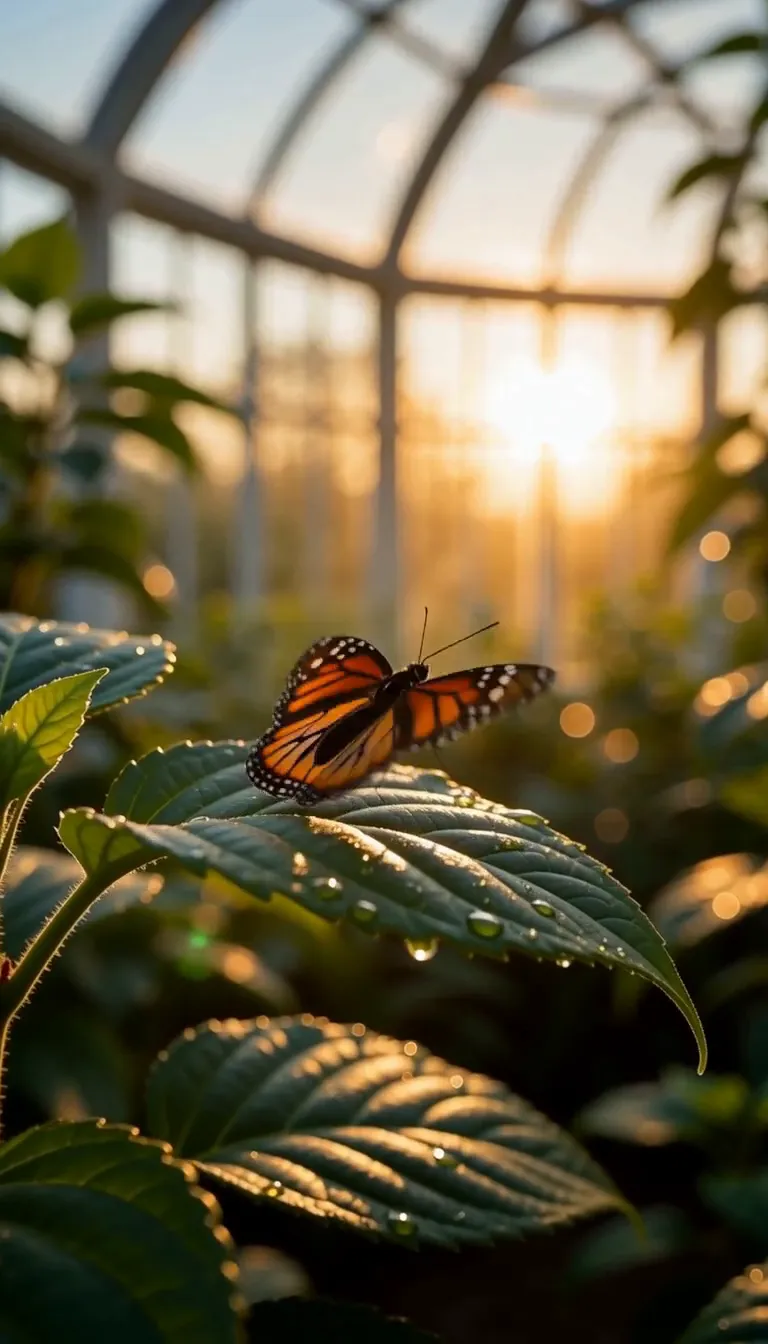
An original H3 result generated on Flow Veo 3 from the inputs shown below. The inputs are frames from our H3 greenhouse text-to-video example. Play to hear the generated audio.

2 reference images · 768P · 16:95-second request

A wider view of the greenhouse
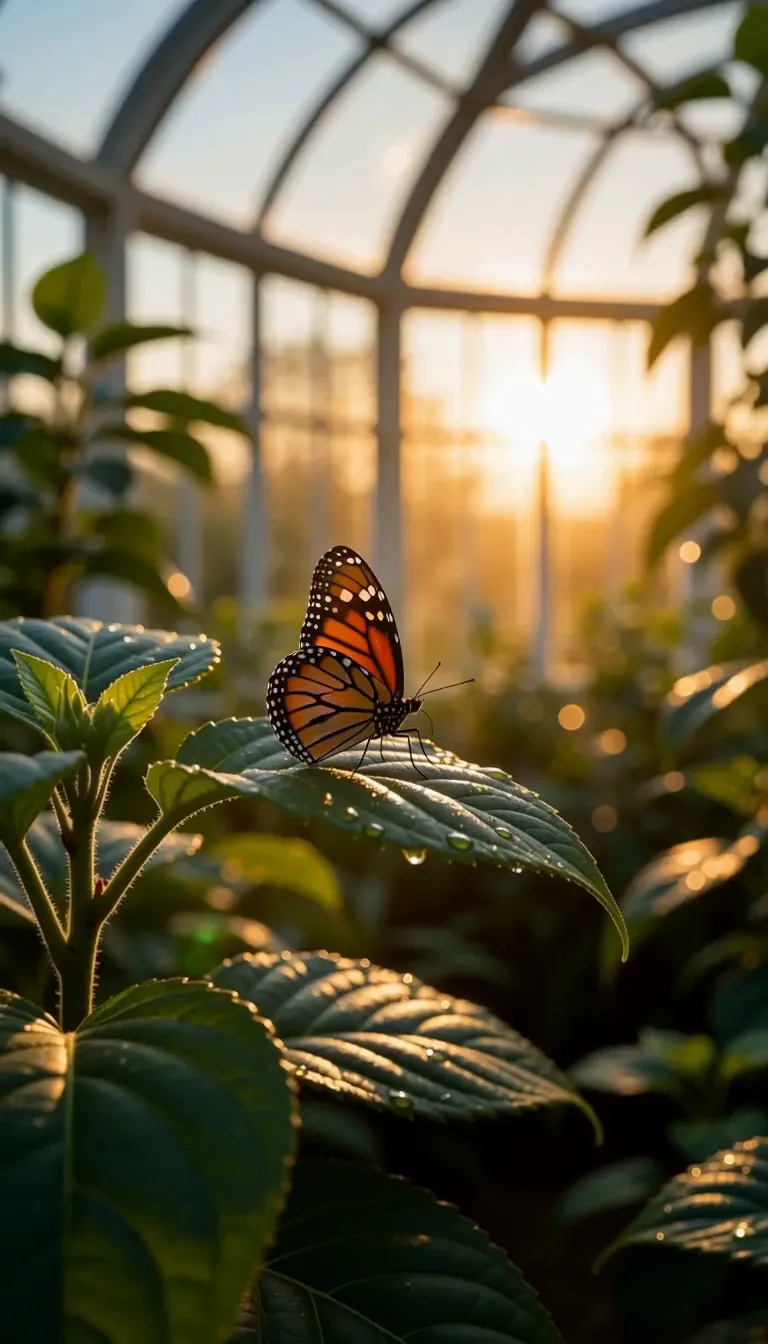
Reference image 1: orange butterfly resting on a dew-covered leaf
Image 1: butterfly
Reference image 2: warm sunrise through the glass greenhouse behind the butterfly
Image 2: greenhouse

Prompt: Use Image 1 for the orange butterfly and Image 2 for the glass greenhouse and warm sunrise. Create a new wide shot showing the butterfly floating above lush leaves inside the greenhouse. Gentle camera tracking, natural wing movement, quiet birdsong and soft rustling leaves. No speech, music, text or logos.

MiniMax H3

MiniMax H3 Reference to Video

FAQ

Answers about this workflow, inputs and output settings.

This Flow Veo 3 workflow accepts 1–9 images. Use JPEG, PNG or WebP up to 30MB each. At least one reference is required; for a prompt with no uploaded material, use H3 Text to Video.

Use Image 1, Image 2 and so on in upload order. State each role explicitly, such as “Use the product from Image 1 in the location shown in Image 2.” Update the numbers if you remove or reorder your source material.

Not in this release of the Flow Veo 3 H3 workflow. The upload controls accept reference images only. Audio for the output can be directed through the text prompt; do not expect a separate source video or audio upload.

References guide the generated result, but fine details and identities can vary. Check branding, text and important visual details in the output. Reduce conflicting references and describe which features matter most.

Auto lets the model derive a framing from the reference material. A fixed ratio defines the destination shape, such as 9:16 for vertical delivery. A reference image is visual guidance, so its entire original composition may not be preserved.

The current cost depends on output duration and resolution. Reference images have no separate surcharge in this image-only workflow. Check the displayed total before submitting.

Create your next H3 clip

Choose the workflow that matches your source material.