
MiniMax H3 Image to Video

Animate a first frame, work toward a last frame, or connect both with sound.

4-15sAudio8-45 creditsImage to Video

Frames

First Frame
Last Frame

Add a first frame, a last frame, or both. JPEG, PNG or WebP, up to 30MB each.

Creative Vision

Describe the motion between frames and the sound. Keep the subject and composition consistent.

0/7000

Video Parameters

5s
4s15s

Choose 4–15 seconds. Longer clips use more credits.

Start at 768P; choose 2K for a higher-resolution output.

Production Cost
9
Credits Balance
Loading...
Model
H3 Image to Video

Cinema Preview

Ready for Production
Configure your settings and begin creating your cinematic masterpiece

Generation History0 records

Latest 10 records • Available 7 days

MiniMax H3 Image to Video Generator

Give MiniMax H3 a first frame, a last frame, or both. Describe the motion and sound to create a 4–15 second video at 768P or 2K. Use one image for a starting composition, one closing image for an intended destination, or two frames for a planned transition.

Use frames that belong to the same scene and explain how the camera travels between them.

MiniMax H3 Image to Video pricing

Examples for 5 seconds with 1 frame, including generated audio. The current price depends on duration and resolution; these image inputs have no separate surcharge.

ResolutionDurationFlow credits
768P5s9
2K5s15

Credits are held on submission and released for confirmed failed generations. Compare credit plans and other models.

MiniMax H3

Create with MiniMax H3 Image to Video

Choose the controls that fit your source material.

Opening

Start from an opening image

The first-frame slot gives the shot an opening visual reference. Describe movement instead of listing everything already visible: a curtain lifting, a product rotating or the camera moving closer. Small, specific actions are easier to evaluate than many unrelated changes.

Ending

Work toward a closing image

A last frame is also accepted on its own. Tell the model what should lead into that image. When both frames are supplied, describe a plausible transition between them; very different compositions may require a bigger change than the clip can express cleanly.

Framing

Let the frames set the composition

This workflow has no aspect-ratio selector. Prepare your images in the composition you intend to use. For two-frame shots, matching dimensions and a consistent subject make the intended continuity clearer.

Audio

Include sound in the motion prompt

Ask for ambience, effects or dialogue alongside the visible action. H3 generates an audio track with the video. The frame uploads do not provide recorded audio, and this page does not accept a reference video or audio file.

Review before your next run

Change one part of the input at a time so you can judge what helped.

4–15 seconds · 768P or 2K
MiniMax H3

How to use MiniMax H3 Image to Video

Prepare the input, describe the change, then review the credit cost.

1
Step 1

Upload one or two frames

Add a JPEG, PNG or WebP image up to 30MB to either slot. At least one frame is required. Use the first slot for an opening composition and the last slot for the intended ending.

2
Step 2

Explain what happens between them

Try “Slowly turn the ceramic vase toward the camera while the afternoon light shifts across it. End on the closer view. Quiet room ambience.” Avoid asking for an unrelated location or a new subject unless that change is intentional.

3
Step 3

Choose output and review the price

Start at 768P and 5 seconds, or select another duration up to 15 seconds. The current price depends on duration and resolution. Review the final result for continuity before making another attempt at 2K.

Auto-playing timeline

Review before your next run

Change one part of the input at a time so you can judge what helped.

4–15 seconds · 768P or 2K
Made with MiniMax H3

A planned transition between frames

An original H3 result generated on Flow Veo 3 from the inputs shown below. The inputs are frames from our H3 greenhouse text-to-video example. Play to hear the generated audio.

First + last frame · 2K5-second request

Butterfly taking flight
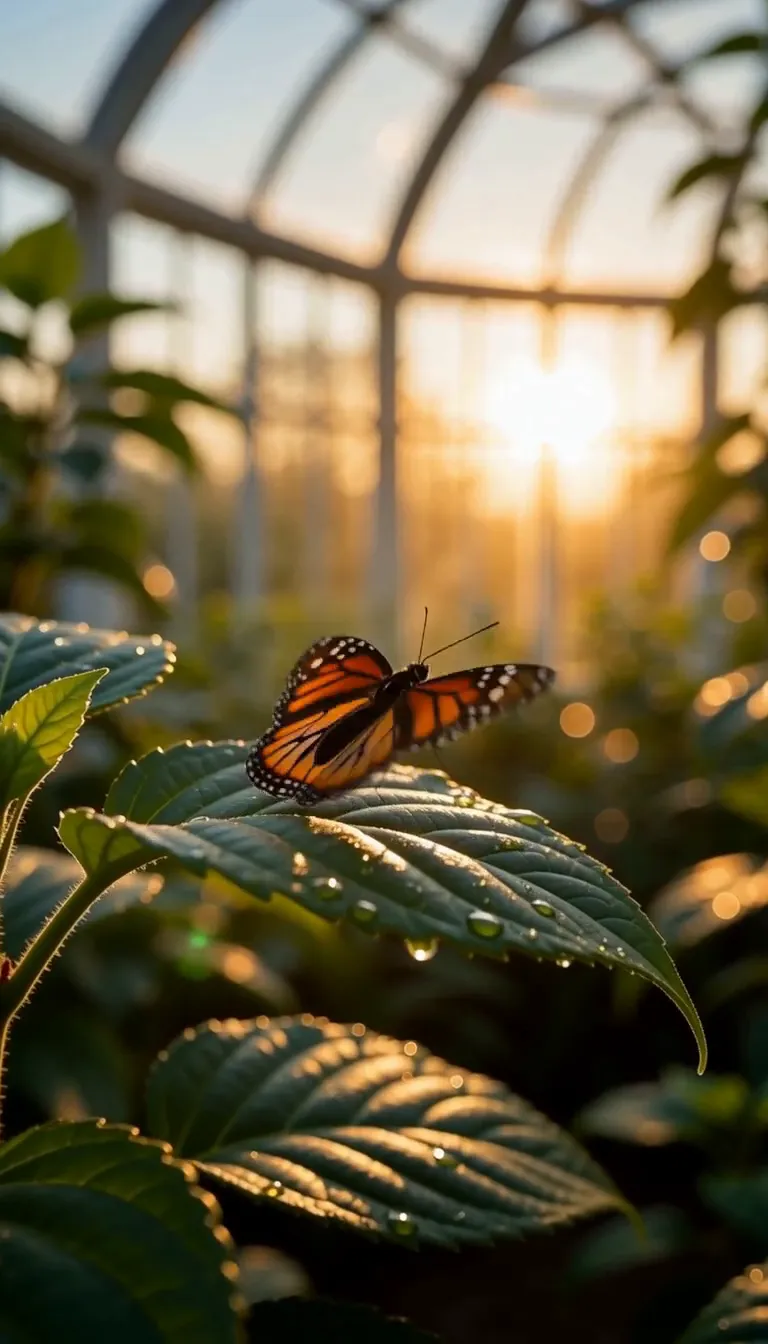
Orange butterfly with closed wings on a dew-covered leaf inside a sunlit greenhouse, used as the MiniMax H3 opening frame
First frame
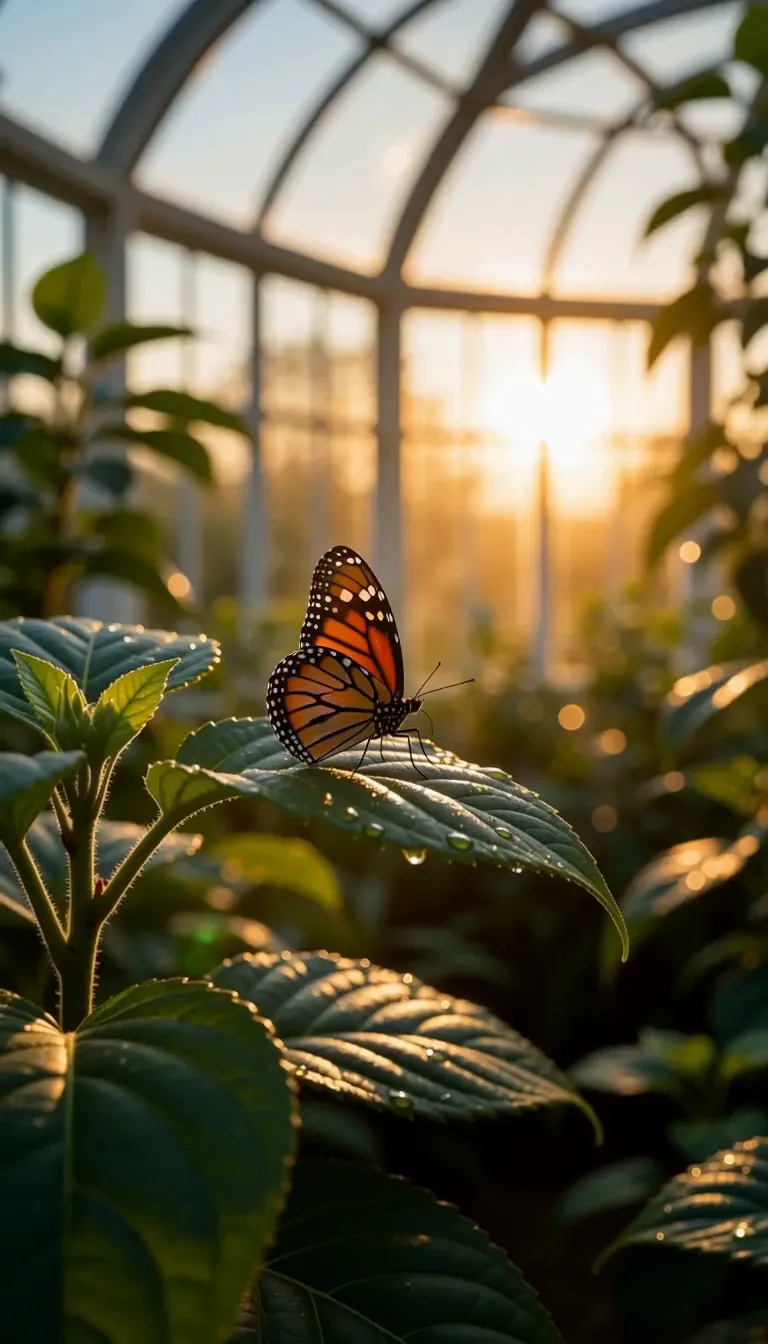
Orange butterfly opening its wings above a leaf in the sunlit greenhouse, used as the MiniMax H3 closing frame
Last frame

Prompt: The orange butterfly slowly opens its wings and lifts off the green leaf into warm sunrise. Move smoothly from the opening frame to the closing frame. A gentle camera push, quiet birdsong and soft rustling leaves. No music, text or logos.

MiniMax H3

MiniMax H3 Image to Video

FAQ

Answers about this workflow, inputs and output settings.

No. You may upload only a first frame, only a last frame, or both. At least one is required. With no images, use the H3 Text to Video page.

It guides the intended ending of the generated shot. Describe the action that connects the opening and ending, or the action that should arrive at a closing image when only the last frame is supplied. Results can vary; it is not a guarantee of pixel-perfect reconstruction.

The H3 image-to-video interface takes its framing from the supplied images and has no separate aspect-ratio parameter. Compose your source images for the destination before uploading.

No. Under the current image-only pricing, one or two frames cost the same at a given duration and resolution. The exact credit total is shown before submission.

Frame inputs describe the opening or ending composition. Reference images provide visual material for subjects and scenes without choosing a fixed opening or closing frame. Use Reference to Video if you want to assign several images separate roles.

JPEG, PNG and WebP, up to 30MB per image. Choose clear source images that you have permission to use. Video clips and audio uploads are not supported in this workflow.

Create your next H3 clip

Choose the workflow that matches your source material.