
Kling 2.5 Turbo Image to Video

Animate a first frame, or steer toward a last frame, with Kling 2.5 Turbo.

5/10sAudio10-20 creditsImage to Video

Frames

First Frame *
Last Frame (optional)

JPEG or PNG, up to 10MB each (WebP is not accepted). The video keeps the first frame's aspect ratio.

Creative Vision

Describe how the image should move. With a last frame, describe how the scene gets there. Up to 2,500 characters.

0/2500

Video Parameters

Priced per clip: a 10-second video costs twice a 5-second one.

Production Cost
10
Credits Balance
Loading...

Cinema Preview

Ready for Production
Configure your settings and begin creating your cinematic masterpiece

Generation History0 records

Latest 10 records • Available 7 days

Kling 2.5 Turbo Image to Video

Bring a still picture to life with Kling 2.5 Turbo. Upload the frame the video starts on, add a second frame if you want to decide where it ends, and describe the movement in between. Each run returns a 5 or 10 second clip in the shape of your first frame.

Two frames from the same scene — the same subject a moment later — give the smoothest in-between motion.

Kling 2.5 Turbo

Start frame, end frame, motion in between

Your images fix the look; the prompt describes what happens.

Consistency

The first frame is the opening shot

Colours, lighting, the subject's design and the composition all come from the image you upload, so the clip opens exactly on your picture instead of the model's interpretation of a description.

Control

A last frame gives the clip a destination

Add a closing image and Kling 2.5 Turbo generates the motion that gets from one to the other — a butterfly leaving a leaf, a door swinging shut, a product turning to face the camera. Leave it empty and the model decides how the shot ends.

Framing

The frame sets the aspect ratio

There is no ratio menu on this page. The video follows the shape of your first frame, so crop the image to 16:9, 9:16 or square before you upload it.

Control

Keep unwanted details out

A negative prompt of up to 2,496 characters, under Advanced, lets you rule out blur, distorted shapes or stray text. It is the fastest fix when a run is almost right.

Prepare the frames first

Most results are decided by the images: matching light, framing and aspect ratio between the two frames matter more than prompt length.

5 or 10 seconds · first frame, optional last frame
Kling 2.5 Turbo

How to animate an image with Kling 2.5 Turbo

Upload, describe the change, generate.

1
Step 1

Upload a JPEG or PNG first frame

Up to 10MB per image. WebP is not accepted by this model, so convert it first. If you add a last frame, give it the same aspect ratio as the first.

2
Step 2

Describe what moves

Write the action and the camera, not the picture: “The butterfly opens its wings and flutters up toward the glass, the camera drifts upward.” With two frames, say how the scene travels from the first to the second.

3
Step 3

Choose 5 or 10 seconds

Five seconds suits a single movement; ten gives a transition between two frames room to breathe. The credit cost is shown before you generate.

Auto-playing timeline

Prepare the frames first

Most results are decided by the images: matching light, framing and aspect ratio between the two frames matter more than prompt length.

5 or 10 seconds · first frame, optional last frame
Made with Kling 2.5 Turbo

From a first frame to a last frame

An original Kling 2.5 Turbo image-to-video result generated on Flow Veo 3 from the two frames shown below. Both frames were taken from one of our own earlier sample videos.

Image to Video · first + last frame5-second request

Butterfly taking flight in a greenhouse
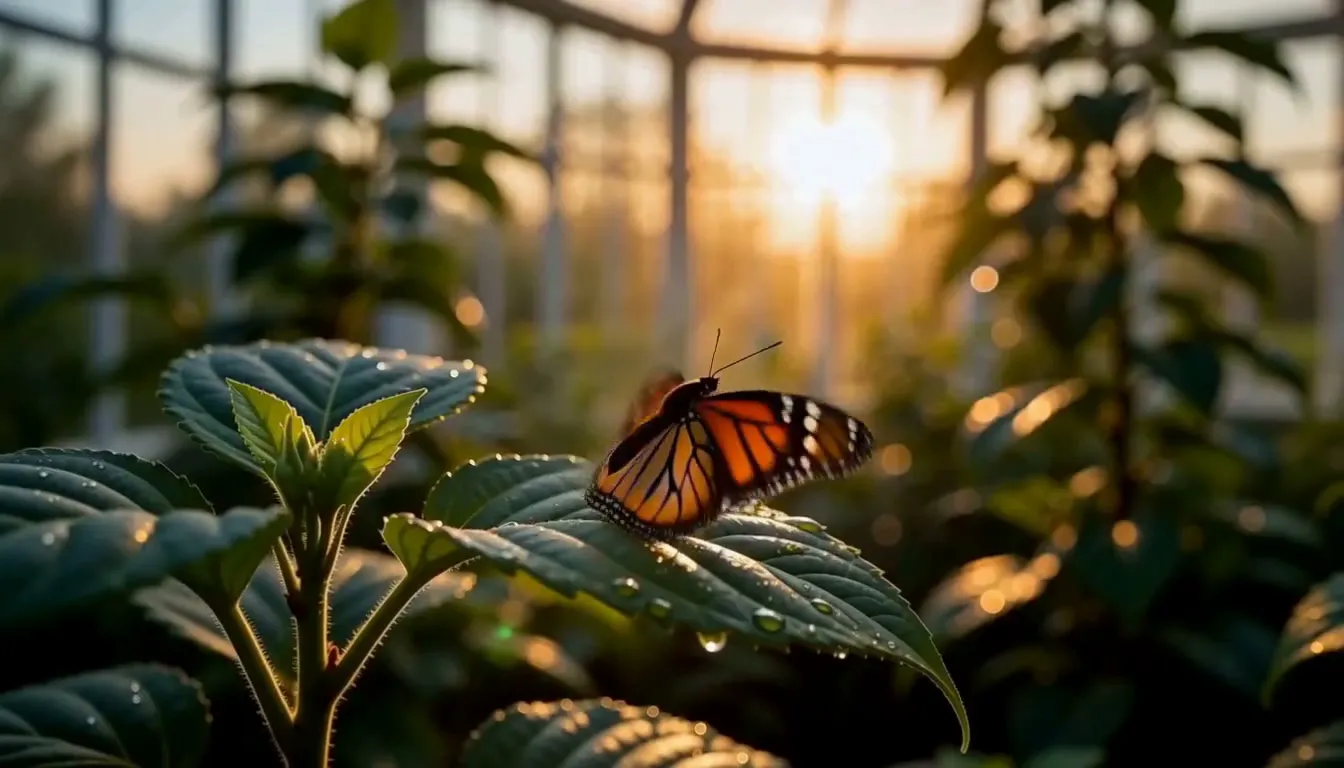
First frame: an orange monarch butterfly resting on a dew-covered leaf inside a sunlit glass greenhouse
First frame
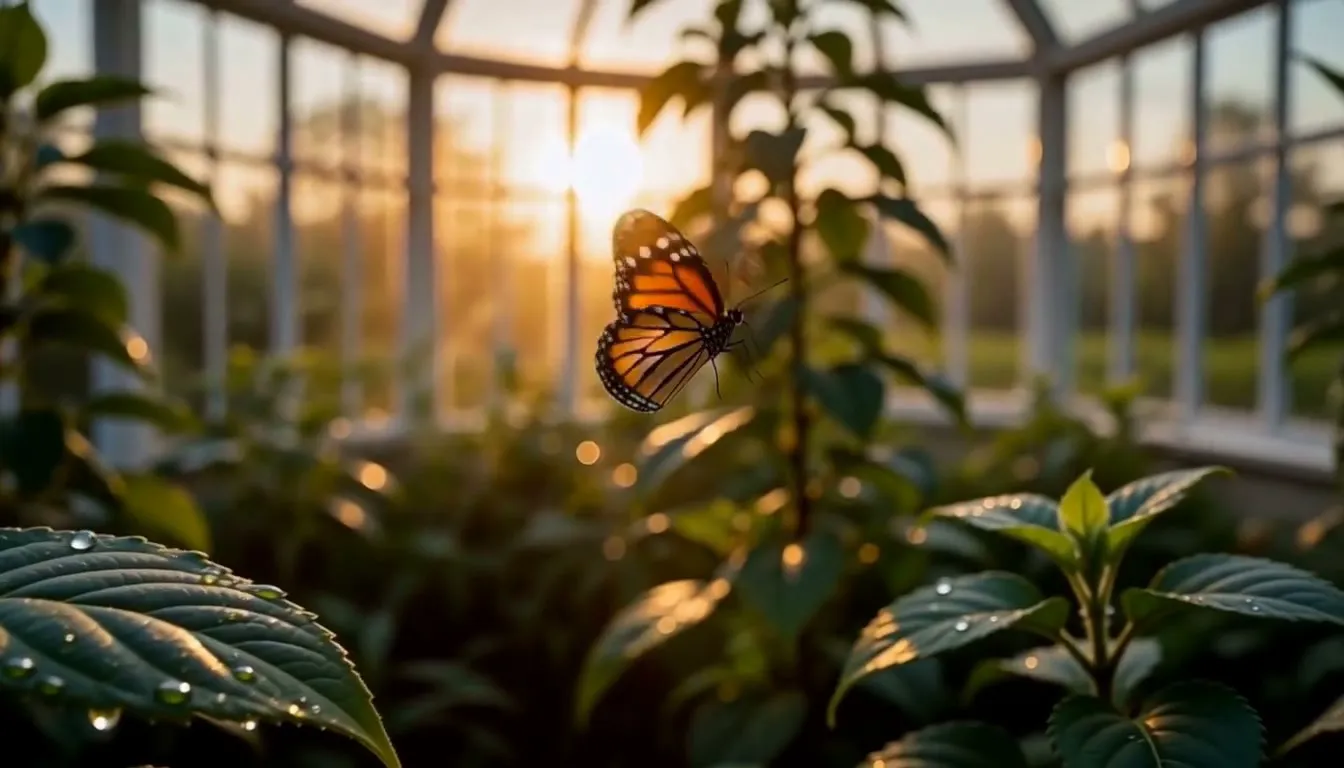
Last frame: the monarch butterfly in flight near the greenhouse glass, backlit by the low sun
Last frame

Prompt: The monarch butterfly slowly opens its wings, lifts off the dewy leaf and flutters up toward the sunlit greenhouse glass. Soft golden backlight, shallow depth of field, the camera drifts gently upward to follow it.

Kling 2.5 Turbo

Kling 2.5 Turbo Image to Video

FAQ

Answers about frames, image formats and what to expect from the result.

No. The first frame is required and the last frame is optional. With one image the model decides how the shot ends; with two it generates the motion that connects them.

No. A last frame only works together with a first frame, so the page asks for the opening image before it will generate.

JPEG or PNG, up to 10MB each. WebP files are not accepted by Kling 2.5 Turbo, so convert them before uploading.

Upload a vertical first frame. The video takes the aspect ratio of the first frame, so a 9:16 image gives a 9:16 clip.

Our test generations came back with an ambient soundtrack made by the model. There is no audio switch and sound is not charged separately; if you need control over speech and sound, use Kling 3.0 Image to Video.

Yes. Credits are held when you submit and returned automatically if the generation fails. Finished videos are only available for 7 days, so download the ones you want to keep.

Animate your picture with Kling 2.5 Turbo

Upload a first frame, add a last frame if you like, and generate.