
Veo 3.1 4K vs 1080p: Which Resolution Should You Choose?
Compare Veo 3.1 4K vs 1080p for social video, product ads, YouTube, editing flexibility, credit use, and AI video workflows.
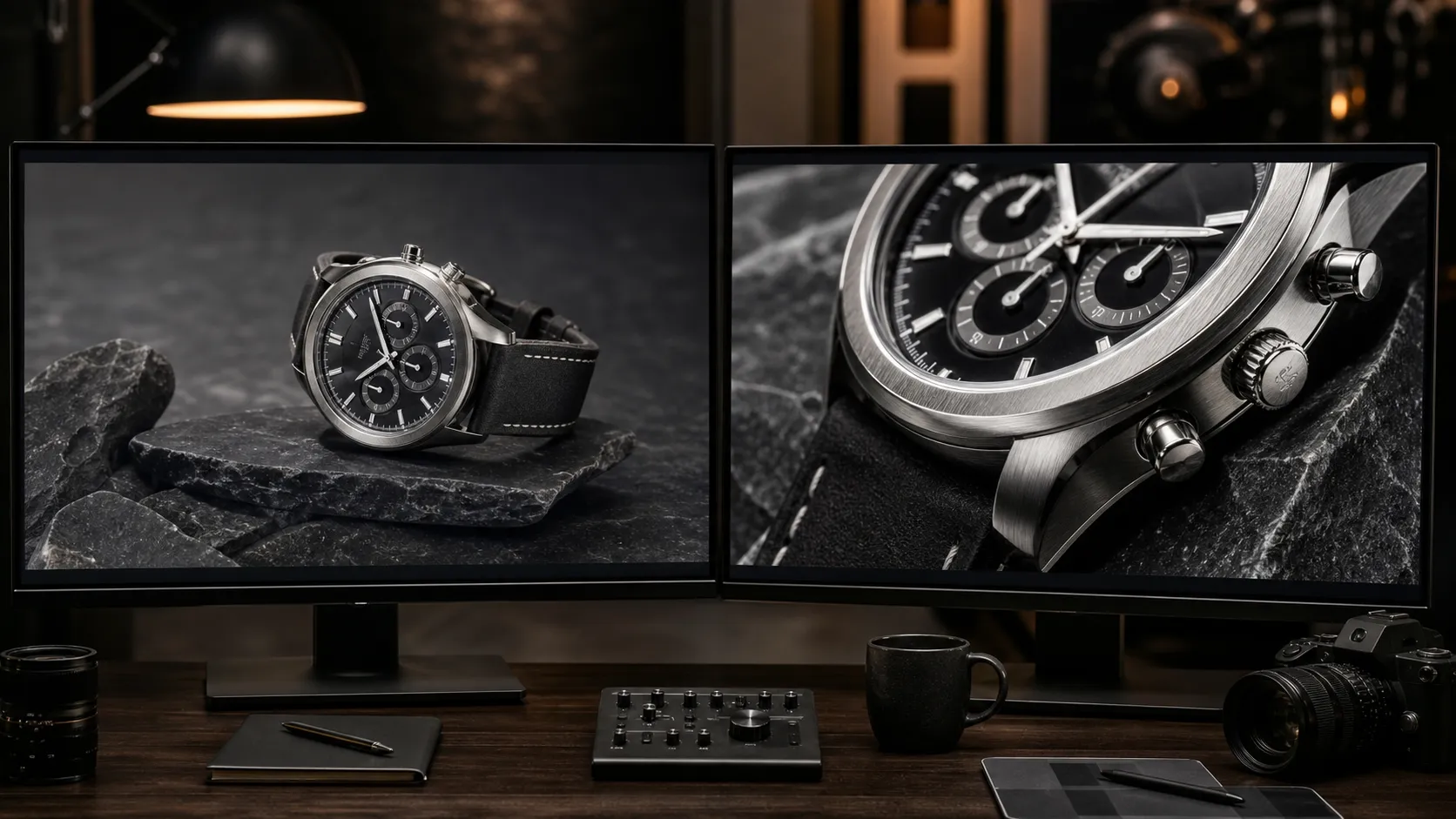
Choosing between Veo 3.1 4K vs 1080p is not simply a question of picking the largest number. The right resolution depends on where the clip will appear, how much you expect to crop it, whether it is a draft or a final asset, and how many generations you need to test before finding the best result.
The short answer: use 1080p for prompt testing, social content, everyday web video, and efficient iteration. Choose 4K for approved hero shots, premium product visuals, large displays, and projects that need extra room for cropping or reframing.
You can start with the Veo 3.1 1080P generator for fast Full HD production, or move directly to the Veo 3.1 4K generator when high-resolution delivery is a project requirement.
Veo 3.1 4K vs 1080p: Quick Comparison
For a standard 16:9 landscape video, 1080p is usually 1920 × 1080 pixels. 4K UHD is usually 3840 × 2160 pixels. That gives 4K four times the total pixel count, but it does not automatically make every generated frame four times more realistic.
| Factor | Veo 3.1 1080p | Veo 3.1 4K |
|---|---|---|
| Standard landscape pixel grid | 1920 × 1080 | 3840 × 2160 |
| Best for | Social posts, web video, explainers, tests | Product launches, premium ads, large screens, master files |
| Cropping flexibility | Good for light reframing | Better for punch-ins and multiple crops |
| Generation strategy | Efficient for trying several prompts | Best reserved for selected final concepts |
| Storage and editing | Lighter files and easier playback | Heavier files and more demanding editing |
| FlowVeo3 credit use | Lower | Higher |
| Visual consistency | Depends on inputs and prompt | Depends on inputs and prompt |
| Audio direction | Supported | Supported |
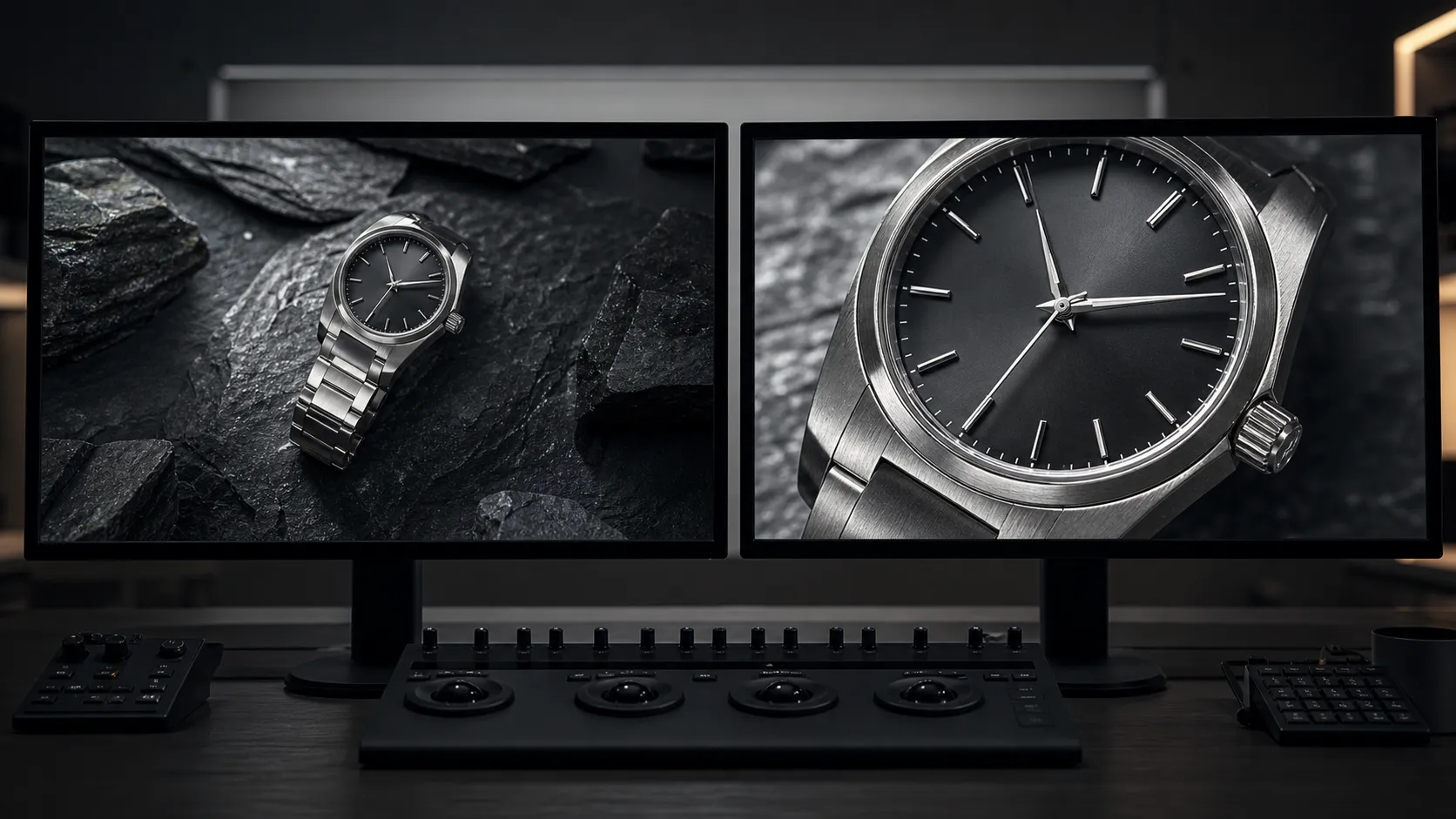
Google describes current Veo 3.1 workflows as offering 1080p and 4K output options. Its own announcement uses the language “upscale to 1080p or 4K,” which is an important distinction: resolution describes the output dimensions, while perceived quality still depends on the original generated detail, motion, lighting, compression, and subject consistency. See the official Veo 3.1 update from Google for the current platform-level description.
What Actually Improves When You Choose 4K?
The clearest advantage is delivery flexibility. A 4K frame contains more pixels, so an editor can crop into the image, stabilize a shot, or create several compositions while still exporting a clean 1080p result. This can be valuable when one generated clip needs to serve a YouTube video, a landing-page hero, a presentation, and a tighter social edit.
Fine visual elements may also hold up better on large displays. Product surfaces, fabric, architecture, foliage, particles, and wide establishing shots benefit more from extra output detail than a simple talking-head composition viewed on a phone.
However, 4K does not fix the underlying creative direction. It will not automatically correct an unclear prompt, an overcomplicated scene, inconsistent hands, unwanted text, weak character continuity, or an awkward camera move. A well-directed 1080p clip can look substantially better than a poorly directed 4K clip.
Think of resolution as the size and flexibility of the finished canvas—not a replacement for a strong image, reference, or prompt.
When 1080p Is the Better Choice
1080p remains the practical default for a large share of online video production. It is a strong choice when the audience will watch on a phone, laptop, embedded web player, social feed, or standard presentation screen.
Choose 1080p when you are:
- Testing several prompt variations or camera directions.
- Creating TikTok, Instagram Reels, YouTube Shorts, or paid social concepts.
- Producing web explainers, course clips, internal presentations, or prototypes.
- Working on a device that handles Full HD footage more smoothly than 4K.
- Comparing text-to-video, frame-guided, and reference-image approaches.
- Prioritizing more attempts over maximum resolution on the first attempt.
AI video generation is iterative. The first prompt is rarely the only prompt worth testing. Using 1080p during exploration lets you compare different actions, framing, lighting, and pacing without committing the higher credit cost to every draft.
For most social workflows, the aspect ratio matters as much as the resolution. Choose 9:16 for vertical video and keep important subjects near the center so the composition remains useful across platform interfaces.
When 4K Is Worth It
4K becomes more valuable after the concept is clear and the final clip has a demanding destination. It is especially useful when the video will be viewed large, reused in several edits, or presented as a premium brand asset.
Choose 4K when you are creating:
- Product launch videos with close-ups of materials, packaging, or surfaces.
- Landing-page hero videos that may be cropped responsively.
- YouTube masters intended for high-resolution playback.
- Large-screen event visuals, pitch presentations, or showroom displays.
- Premium ads, brand films, architectural scenes, or detailed environments.
- Source footage that an editor will crop, stabilize, or downsample later.
The strongest 4K candidates are usually shots where detail is part of the message. A watch face, glossy cosmetic bottle, textured jacket, wide landscape, or intricate futuristic city has more to gain than a deliberately soft, handheld phone-style clip.
Credit Cost: Generate More Drafts or One Higher-Resolution Final?
On FlowVeo3, both resolution pages show the required production cost before submission. At the time of writing, the available eight-second modes compare as follows:
| Generation mode | 1080p | 4K | Practical use |
|---|---|---|---|
| Lite | 10 credits | 25 credits | Cost-conscious text or frame experiments |
| Fast | 20 credits | 40 credits | Faster production and reference-image support |
| Quality | 40 credits | 60 credits | Refined text or first/last-frame output |
Credit requirements can change, so confirm the displayed total in the generator and check the current credit packages before planning a large batch.
This difference suggests a simple production rule: do not spend your entire testing budget at the final resolution. If you have several possible concepts, use 1080p to identify the strongest subject, motion, and camera direction. Then use 4K for the few shots that have a clear delivery need.
Text, Frames, and Reference Images at Both Resolutions
Resolution is only one decision in the generation workflow. The Veo 3 video generator family also lets you choose how the shot is controlled.
Text to Video
Use text-to-video when the scene can be described without a fixed source image. A focused prompt should define the subject, action, setting, shot size, camera movement, lighting, visual style, and audio direction. Text-to-video is available across Lite, Fast, and Quality modes on the dedicated 1080p and 4K pages.
First and Last Frame
Use one starting frame to animate an existing composition, or provide both a first and last frame to direct the opening and ending state. This is helpful for product turns, reveals, scene transitions, or shots that need a planned final composition. The frame workflow is available across the three modes.
Reference Images
Use reference images when the subject, product, environment, or aesthetic needs stronger visual guidance. FlowVeo3 accepts up to three reference images in Fast mode. Reference-image generation is not available in the current Lite and Quality modes, so check the selected task and mode before uploading assets.
Both dedicated resolution workflows currently offer 16:9, 9:16, and automatic aspect-ratio choices, along with audio-enabled generation. Match the ratio to the intended delivery platform instead of relying on a later crop whenever possible.
A Cost-Efficient Resolution Workflow
Use this sequence when quality matters but the project still needs room for experimentation:
- Define the delivery format. Decide whether the final clip is a vertical social post, a widescreen web video, a YouTube master, or a large-screen asset.
- Build a focused shot. Keep one primary action and one clear camera move inside the short generation window.
- Test in 1080p. Compare a few meaningful variations instead of changing every detail at once.
- Review the fundamentals. Check subject identity, motion, composition, audio, unwanted text, and whether the ending frame is usable.
- Select only the strongest shots. Do not move every draft to the highest resolution.
- Generate the final version in 4K when needed. Reuse the approved creative direction, while remembering that a new AI generation can still vary.
- Inspect at full size. Review edges, faces, hands, product geometry, small details, and motion before publishing.
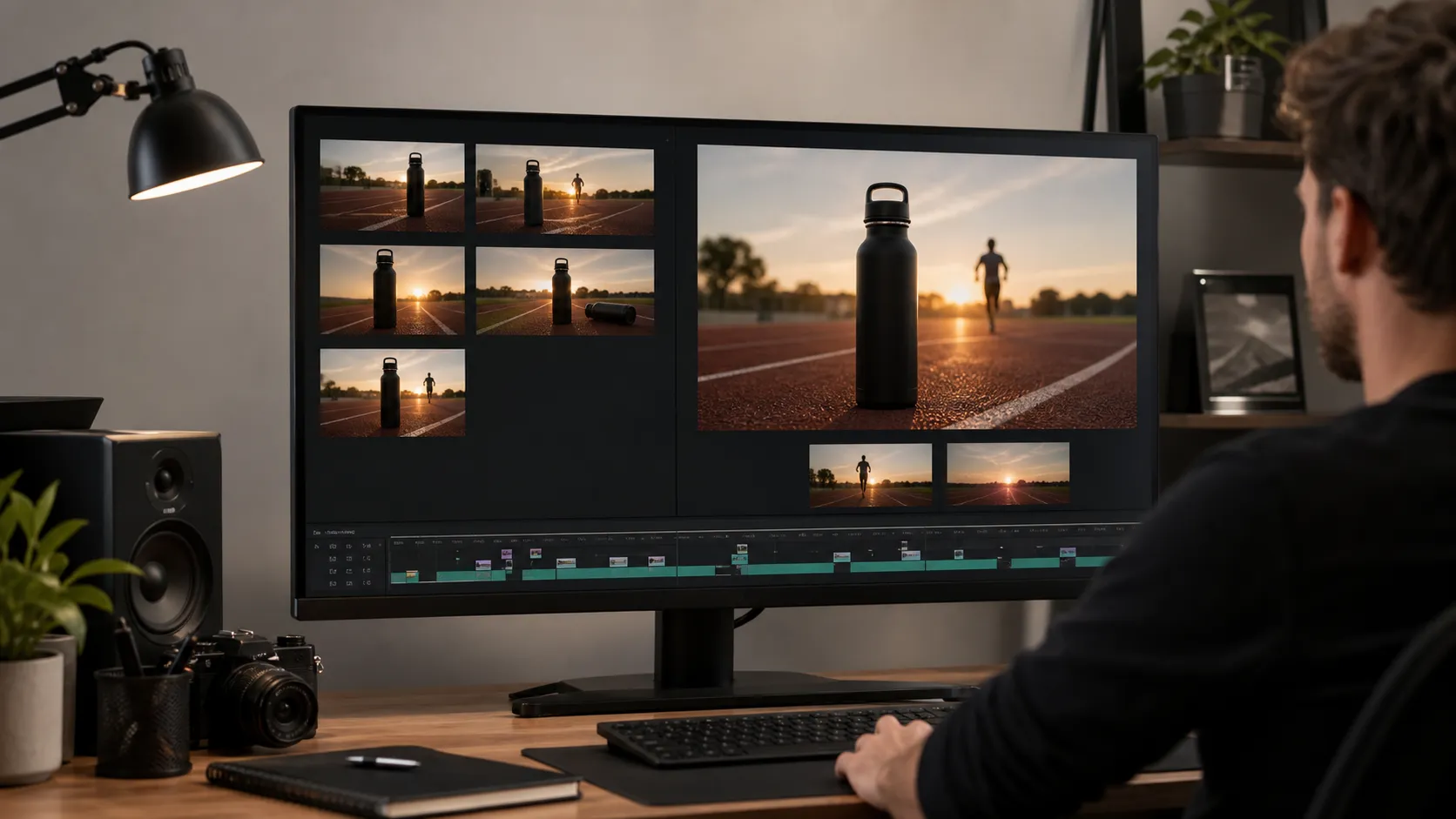
This approach treats 1080p as a creative proof and 4K as a delivery decision. It is usually more efficient than generating every early idea at the maximum setting.
Prompt Examples for 1080p and 4K
A resolution setting cannot compensate for a vague prompt. These examples keep the action narrow and make the intended output clear.
1080p Vertical Social Video
An eight-second vertical 9:16 lifestyle product clip. A runner places a matte black water bottle on a concrete bench at sunrise, wipes condensation from the side, and looks toward the track. Gentle handheld camera movement, natural golden light, authentic sports-ad atmosphere. Audio: quiet morning ambience, distant footsteps, soft bottle contact. No dialogue, captions, logos, or on-screen text.
4K Product Hero Shot
An eight-second widescreen product hero shot of a brushed-metal wristwatch on dark stone. Begin with an extreme close-up of the crown and move into a slow controlled orbit, revealing the face as a narrow beam of warm light travels across the glass. Preserve the exact case geometry and material texture. Premium studio lighting, deep black background, restrained reflections. Audio: subtle mechanical ticking and quiet room tone. No text or extra objects.
The 4K prompt emphasizes surfaces and controlled close-up detail because those qualities can benefit from higher-resolution delivery. The 1080p prompt prioritizes composition, action, and social readability.
Common Resolution Mistakes
Generating Every Draft in 4K
Higher resolution is most useful after the concept works. Spending more on an unclear prompt produces a larger version of an unresolved idea.
Assuming More Pixels Mean Better Motion
Resolution and motion quality are separate. Simplify the action, clarify timing, and specify the camera move if the result feels chaotic.
Ignoring Aspect Ratio
A widescreen 4K clip may still be the wrong asset for a vertical campaign. Pick 16:9 or 9:16 based on placement before generation.
Expecting 4K to Create Character Consistency
Character and product continuity depend more on reference inputs, repeated descriptions, scene planning, and review. More pixels do not lock identity by themselves.
Comparing Resolutions With Different Prompts
For a useful test, keep the creative direction, mode, and aspect ratio as consistent as possible. AI outputs will still vary, but changing every variable makes the comparison less informative.
FAQ
Is 4K four times sharper than 1080p?
4K UHD has four times as many pixels as 1080p, but perceived sharpness does not increase by a guaranteed factor. Source detail, generation quality, compression, screen size, and viewing distance all affect what the audience sees.
Is 1080p good enough for YouTube and social media?
Yes. 1080p is a practical Full HD format for YouTube, websites, presentations, and most social video. Choose 4K when you need a high-resolution master, large-screen playback, or more editing headroom.
Does Veo 3.1 support vertical 4K video?
Google has announced native vertical output for current Veo 3.1 workflows. On FlowVeo3, the dedicated generators include a 9:16 aspect-ratio option; verify your chosen mode and task settings before submission.
Does 4K improve prompt accuracy or character consistency?
Not by itself. Resolution affects the output size. Prompt adherence and consistency depend on the model, task type, reference assets, prompt clarity, and the specific generation.
Should I generate in 4K and export a 1080p version?
That is useful when you need multiple crops or a flexible master file. If the video will only be viewed in a small web or social placement, generating directly at 1080p can be more efficient.
Is Veo 3.1 4K native or upscaled?
Google's official announcement describes the feature as the ability to upscale Veo 3.1 output to 1080p or 4K. It is safest to describe the result as a 4K output rather than assume it behaves like footage captured natively by a physical 4K camera sensor.
Final Recommendation
For most creators, the best Veo 3.1 4K vs 1080p strategy is a hybrid one: explore and validate in 1080p, then use 4K selectively for approved shots with a clear high-resolution destination.
Choose 1080p when speed, iteration, and online distribution matter most. Choose 4K when detail, cropping flexibility, premium presentation, or large-format playback justifies the additional credits. The best resolution is the one that fits the final delivery—not simply the largest option available.